
Microsoft storage full? How to clear Outlook.com and OneDrive safely
If Microsoft says your storage is full, first identify which limit you reached. Outlook.com has a separate mailbox quota, while Microsoft cloud storage covers OneDrive files, photos, and Outlook.com attachments. Either limit can stop mail from sending or arriving.
The safest cleanup order is:
- Check both storage meters.
- Empty the places that still hold items you already deleted.
- Remove or move the largest Outlook.com messages and OneDrive files.
- Recheck the meters before deleting anything else.
Do not start by clearing whole folders. A small number of large attachments, videos, duplicates, or old file versions can free more space with less risk.
Personal accounts only: this guide covers Outlook.com, Hotmail, Live, and MSN accounts and the personal OneDrive that comes with them. Work and school accounts use different controls and are not supported by Storage Cleaner.
The two Microsoft storage limits
A free personal Microsoft account has two related but different limits:
- Outlook.com mailbox storage: 15 GB for email, contacts, and calendar items.
- Microsoft cloud storage: 5 GB across OneDrive files and photos, Outlook.com attachments, and some other Microsoft 365 app data.
This distinction explains a common frustration: your mailbox may be under 15 GB and email can still stop because the 5 GB Microsoft cloud quota is full. Microsoft calls that state "Microsoft Unified Storage is full."
Check both before cleaning:
- In Outlook.com, open Settings and search for Storage to see the mailbox breakdown.
- Open your Microsoft account storage page or OneDrive storage settings to see the cloud-storage meter.
- Write down which meter is over quota. If both are close, work through Outlook.com and OneDrive in the same cleanup session.
What counts toward Microsoft storage?
Outlook.com mailbox storage
The mailbox meter includes:
- Messages in Inbox, Sent Items, Archive, and other folders
- Messages in Deleted Items until they are permanently removed
- Junk Email
- Email attachments and inline images
- Calendar items
A message does not stop counting just because you moved it from Inbox to Archive. Deleting it normally moves it to Deleted Items, which still counts until you empty that folder or Microsoft removes it automatically.
Microsoft cloud storage
The cloud meter includes:
- Files and photos in OneDrive
- Camera Roll uploads, screenshots, and videos
- Outlook.com attachments
- Items in the OneDrive recycle bin until they are permanently removed
- Other data created by eligible Microsoft 365 apps
Outlook.com attachments can therefore affect both the mailbox view and the cloud-storage problem. That is why deleting a few large messages can matter more than clearing thousands of small ones.
Why Microsoft storage can stay full after you delete email
Deleted Items still contains the messages
Normal deletion sends Outlook.com mail to Deleted Items. Microsoft says that folder continues to count against the mailbox quota until it is emptied or the messages are removed automatically.
Before deleting more mail, open Deleted Items, make sure nothing important is there, and empty only what you are ready to lose.
The OneDrive recycle bin still contains the files
Deleted OneDrive files usually move to the recycle bin first. That makes the action reversible, but the recycle bin can continue using storage. Review it before emptying it because permanent deletion cannot be undone through the normal restore flow.
You cleared the wrong meter
Deleting small messages may reduce mailbox storage without solving a full Microsoft cloud quota. Deleting OneDrive files may do little for a mailbox that is over 15 GB. Check both meters again before continuing.
The meter has not updated yet
Microsoft says some storage changes may take time to appear and advises allowing up to 24 hours in some quota-update situations. Refresh the storage page later before assuming the cleanup failed.
New mail sent while you were over quota will not arrive later
Microsoft says messages sent to an over-quota account are returned to the sender. Once you are under the limit, the sender has to resend them.
The safest cleanup order
Use this order to free the most space while making the fewest irreversible decisions.
1. Review Deleted Items, Junk Email, and the OneDrive recycle bin
These are good first stops because they often contain items you already chose to remove. Review them before emptying. Deleted Items and the recycle bin are also your recovery path for ordinary cleanup actions.
2. Find Outlook.com messages with the largest attachments
In Outlook.com, sort messages by size where available or search for messages with attachments. Start with old mail, Sent Items, and messages whose files you already saved elsewhere.
For an attachment you want to keep:
- Download it or save it to OneDrive.
- Open the saved copy and confirm it works.
- Delete the original message only if you no longer need the message itself.
- Remove it from Deleted Items when you are ready to make the deletion permanent.
Saving an attachment to the same nearly-full OneDrive can shift pressure from the mailbox to the cloud meter, so check both first.
3. Review large OneDrive files and videos
Sort OneDrive files by size. Videos, archives, backups, and installer files often produce the biggest gains. Download or move anything you want to keep before deleting the original.
4. Check duplicate files and old versions
A duplicate is safe to remove only after you verify that the files are truly the same. Old file versions can also consume space, but removing versions is permanent. Keep the current copy and any version you may need for history or recovery.
5. Clear low-value mail in groups
After the biggest items are handled, review newsletters, promotions, automated alerts, and old mail with attachments. Outlook.com's Sweep tool can remove mail from a sender or older messages, but Sweep items still need to leave Deleted Items before they stop counting.
How to clean Outlook.com manually
- Open Outlook.com Settings and search for Storage.
- Review the folder breakdown before deleting anything.
- Open the largest folders first, especially Sent Items, Deleted Items, and folders that hold old attachments.
- Sort by size or filter for attachments.
- Save any attachment or message you need before deletion.
- Delete in small groups and check the result.
- Review Deleted Items, then empty only the items you are ready to remove permanently.
- Recheck both the mailbox and Microsoft cloud meters.
Flagged or high-importance mail deserves an extra review. If you are using Storage Cleaner, those messages are excluded automatically, and you can also protect senders and keywords.
How to clean OneDrive manually
- Open OneDrive and sort My files by size.
- Review large videos, archives, backups, and files you no longer use.
- Open anything you are unsure about before deleting it.
- Check for duplicate copies, but compare the actual files rather than trusting similar names.
- Review old versions only when you understand what history you are giving up.
- Delete in small groups.
- Review the OneDrive recycle bin before emptying it.
- Refresh the Microsoft storage meter later if the change does not appear immediately.
A file shared with you does not use your OneDrive quota; Microsoft says it counts against the owner's storage. Removing a shortcut to a shared folder also does not delete the owner's folder. Deleting content inside a shared folder is different and can affect everyone with access, so check ownership before acting.
What to move instead of delete
Some large files matter. You can move them to another personal Microsoft account you own, then share the destination folder back to your main account.
The accounts do not merge. The other account becomes the owner and its quota carries the files. Your main account accesses them through Shared or a shortcut in My files.
For Outlook.com email, the trade-off is larger. Storage Cleaner can save messages and attachments as files in the other account's OneDrive and share them back. The result can be opened like an email, but it is a file archive, not a live message in your inbox.
How Storage Cleaner helps
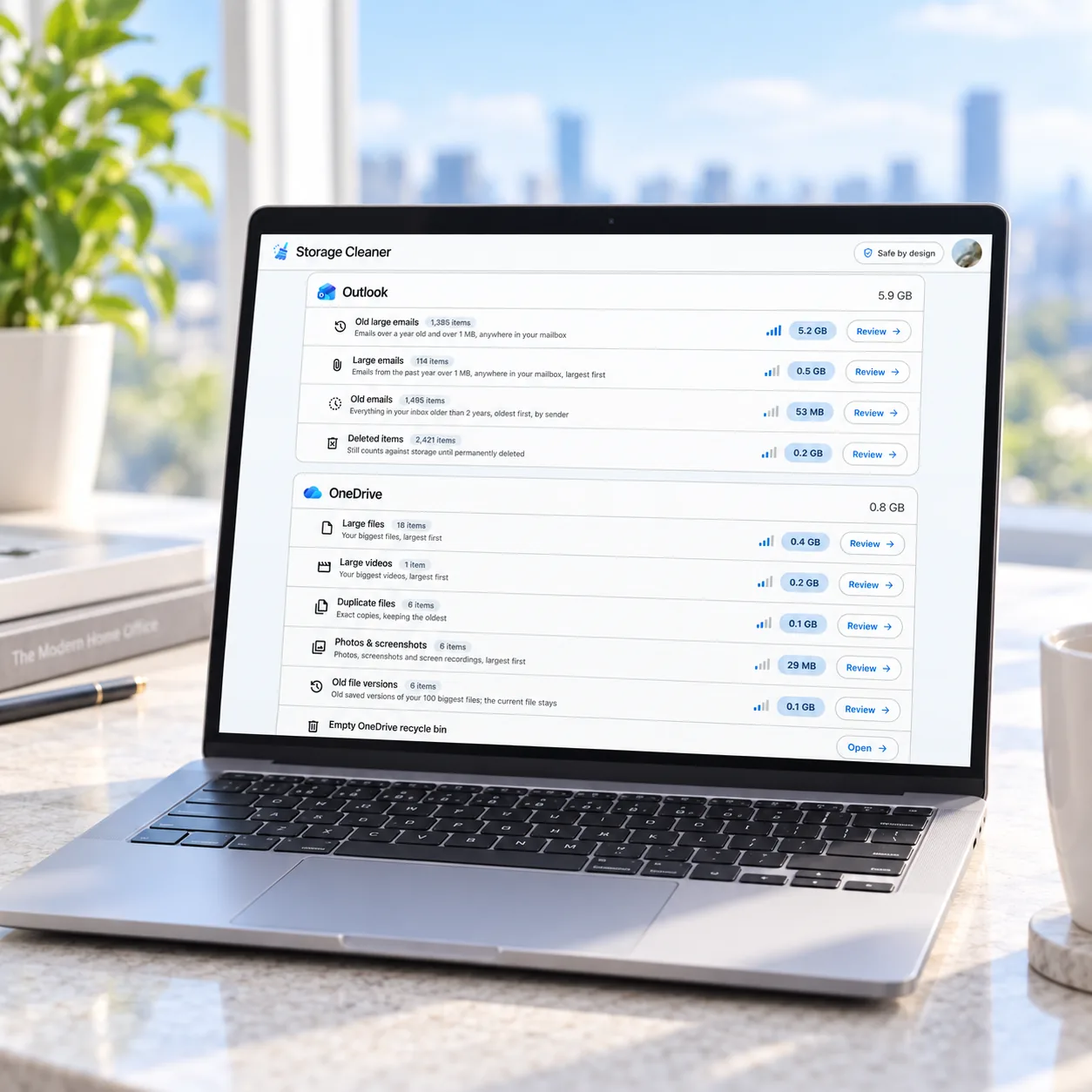
Storage Cleaner scans Outlook.com, OneDrive, and the Microsoft storage quota in your browser. The free scan ranks possible cleanups by space recovered across:
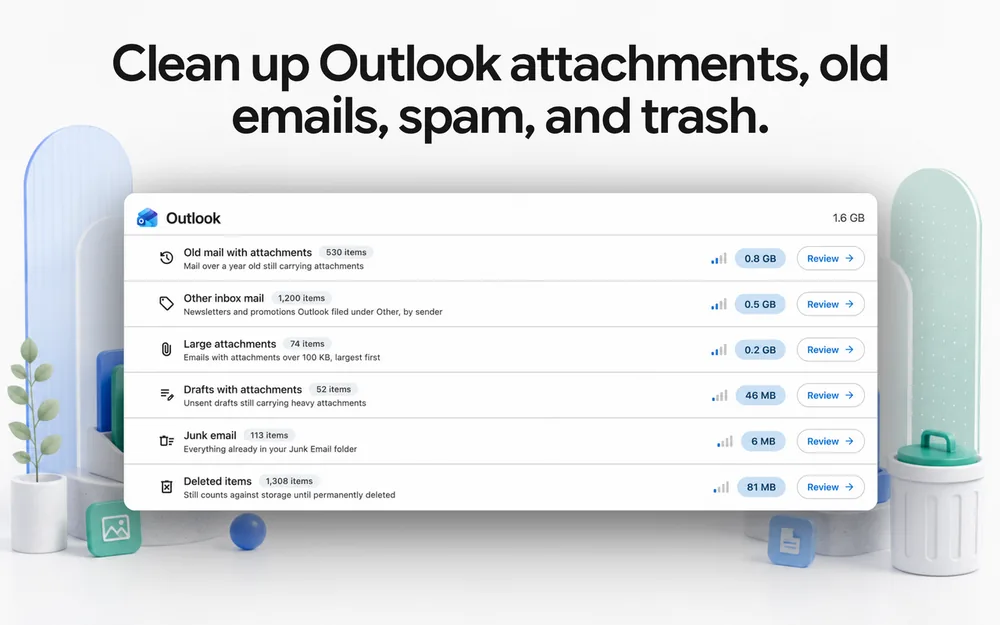
- Large attachments and old mail with attachments
- Drafts with attachments, newsletters, Junk Email, and Deleted Items
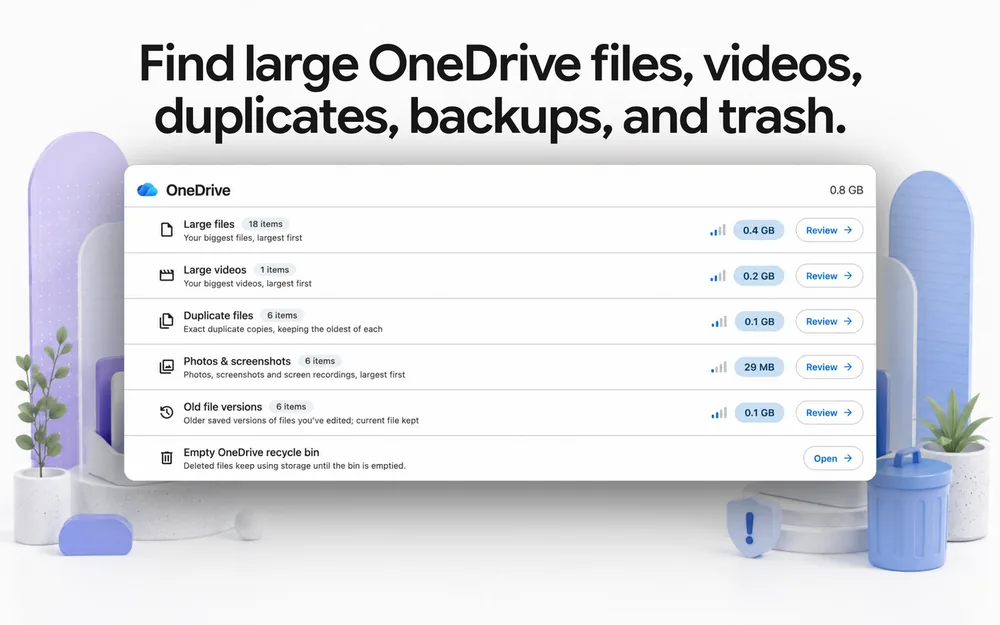
- Large OneDrive files and videos
- Photos, screenshots, duplicates, old versions, and the recycle bin
Nothing is moved or deleted until you review and approve it. Flagged and high-importance mail is excluded. You can protect senders and keywords, and personal-looking files are highlighted and left unchecked.
Ordinary cleanup actions go to Deleted Items or the OneDrive recycle bin first and are restorable for up to 30 days. Permanent actions, such as emptying Deleted Items or removing old versions, are labeled before confirmation.
Storage Cleaner can also copy selected files and archived email to another personal Microsoft account you own, verify transferred files, share the destination folder back, and remove the original only after the copy succeeds.
Need more room after cleaning up? See how to use up to 20 GB across free Microsoft accounts.
Frequently asked questions
Why is my Microsoft storage still full after deleting emails?
The messages may still be in Deleted Items, the full limit may be Microsoft cloud storage rather than the Outlook.com mailbox, or the storage meter may not have updated yet. Empty only items you have reviewed, check the OneDrive recycle bin, compare both meters, and allow time for the update.
Does deleting Outlook.com email free OneDrive storage?
It can. Outlook.com attachments count toward Microsoft cloud storage as well as the email system's storage view. Deleting messages with large attachments and then clearing Deleted Items can reduce storage. Small messages without large attachments may make little difference to the cloud quota.
How do I find large emails in Outlook.com?
Open Outlook.com Storage settings to see the biggest folders, then sort messages by size where available or filter for attachments. Start with old messages and Sent Items, where large files are often duplicated in past conversations.
How do I clean OneDrive without losing files?
Sort by size, open uncertain files, download or move anything you need, and delete in small groups. Leave the recycle bin intact until you have checked the remaining files. Do not remove old versions or empty the recycle bin until you accept that those actions are permanent.
Does emptying Deleted Items or the OneDrive recycle bin free space?
Yes, those locations can continue using storage. Emptying them can free space, but it also removes the normal recovery path. Review the contents first.
Are work or school Microsoft accounts supported?
No. Storage Cleaner and this guide are for personal Microsoft accounts: Outlook.com, Hotmail, Live, and MSN addresses and their personal OneDrive storage.