
How to get up to 20 GB of free Microsoft cloud storage
Microsoft gives every free personal account 5 GB of cloud storage. If you own four eligible accounts, those four separate quotas add up to 20 GB of distributed cloud storage.
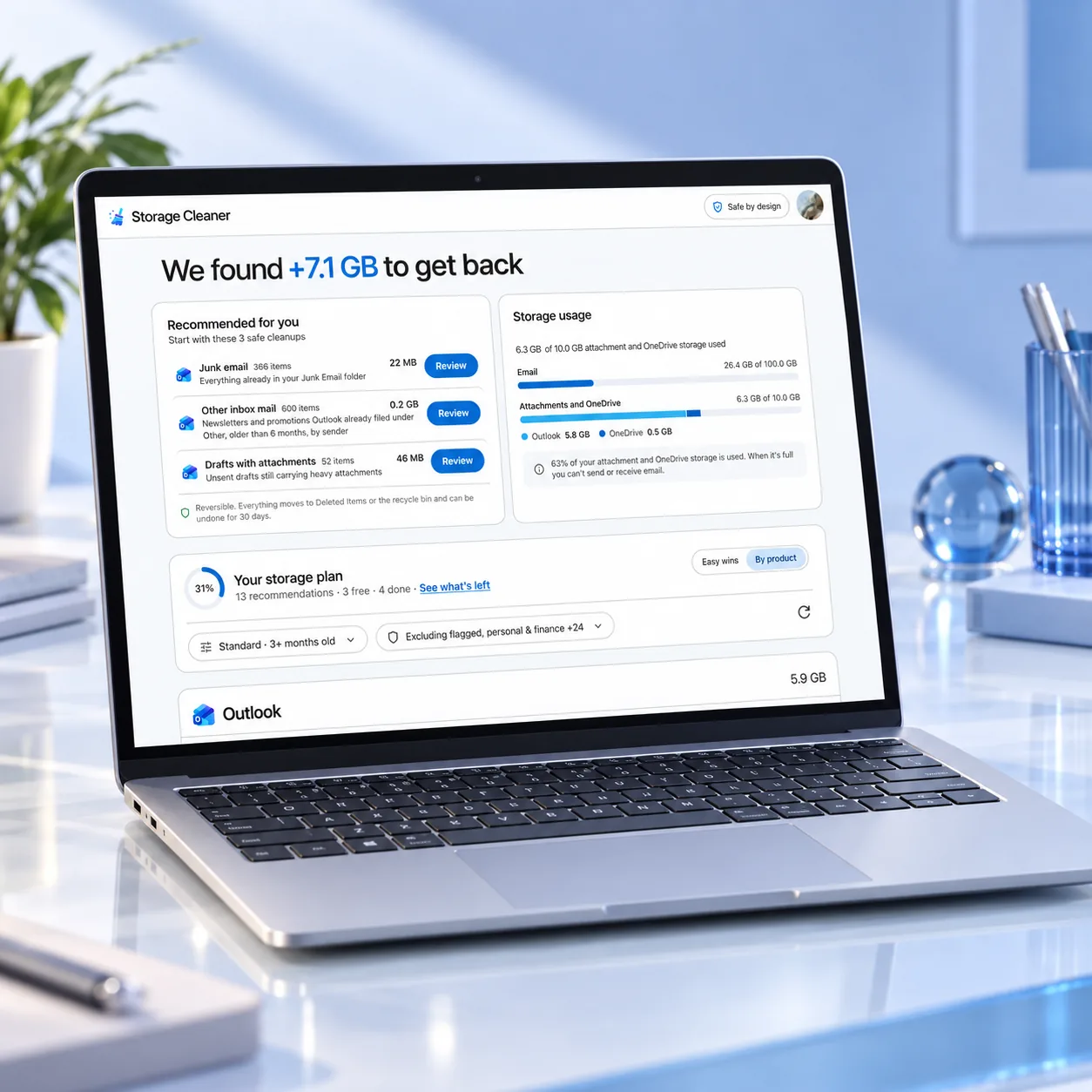
The storage does not merge into one meter. Your main account keeps its own 5 GB. The other accounts own what you move into them. Share the destination folders back to your main account so the moved files remain easy to find and use.
Storage Cleaner supports this method with your main account plus up to three additional personal Microsoft accounts you own. It can copy selected OneDrive files or archived Outlook.com email, verify the transfer, share the destination folder back, and remove the original only after the new copy is safe.
Important: the 20 GB figure refers to cloud storage across OneDrive files, photos, and Outlook.com attachments. It does not combine four Outlook.com mailbox quotas into one inbox.
The 20 GB math
Microsoft's current free limits are:
- 5 GB of cloud storage per personal Microsoft account for OneDrive files/photos, Outlook.com attachments, and eligible Microsoft 365 app data.
- 15 GB of separate Outlook.com mailbox storage per account for mail, contacts, and calendar items.
For the cloud quota:
- Main account: 5 GB
- Connected account 1: 5 GB
- Connected account 2: 5 GB
- Connected account 3: 5 GB
- Total across four separate accounts: up to 20 GB
Storage Cleaner can connect up to three additional accounts you own. You do not have to connect all three. One extra account raises the distributed cloud capacity to 10 GB; two raise it to 15 GB; three raise it to 20 GB.
What "combined" really means
This method does not change Microsoft's quota rules and does not turn four accounts into one big account.
Each account keeps its own:
- Sign-in and recovery details
- 5 GB cloud meter
- OneDrive ownership
- 15 GB Outlook.com mailbox quota
- Recycle bin
Your main account becomes the front door for shared folders. Microsoft says a shared folder added to your OneDrive does not use your storage; it counts against the folder owner's quota.
That ownership detail matters. If the other account stops sharing the folder, loses access, or becomes inactive and closes, your main account can lose access to those files. Treat every extra account like an account that holds real data, because it does.
Who should use this method?
It fits people who:
- Have several gigabytes of files or archived email they want to keep
- Would rather reorganize what they already have than keep deleting it
- Are comfortable owning and maintaining extra personal Microsoft accounts
- Prefer one-time organization over permanent deletion
- Understand that storage stays distributed
It is less suitable when you need one seamless quota, one inbox, family sharing, large active work files, or guaranteed centralized recovery.
If storage is already full, follow the Microsoft storage cleanup guide first.
How the move-and-share-back method works
For OneDrive files, the pattern is:
- Choose another personal Microsoft account you own.
- Create a destination folder in that account's OneDrive.
- Copy selected files into the destination account.
- Open or verify the copied files.
- Share the destination folder back to the main account.
- Add the shared folder to My files if you want it to appear beside your main-account folders.
- Remove the originals from the main account only after verification.
- Leave them in the recycle bin until you are confident the move succeeded, then empty it when you need the space.
The destination account owns the files and they count against its 5 GB. The main account accesses the shared folder without consuming its own OneDrive quota.
Moving OneDrive files manually
Microsoft does not provide a simple merge button for two personal OneDrive accounts. The most understandable manual route is download, upload, verify, and share back.
Step 1: prepare the destination account
Sign in to the extra account, create a clearly named folder such as Storage archive from main account, and confirm there is enough free space.
Step 2: copy the files
From the main account, download the files or folders you want to move. Then sign in to the destination account and upload them into the archive folder.
For large batches, work in smaller groups so failures are easier to spot. Keep the original files until the destination copy is complete.
Step 3: verify the destination
Open a sample from every file type, compare file counts and sizes, and make sure the upload finished. Similar names are not proof that the contents match.
Step 4: share the folder back
Share the destination folder with the main account. Specific-person sharing is safer than a broad public link. Give edit access only if the main account should be able to change or delete the destination files.
In the main account, open Shared. If Microsoft offers Add shortcut to My files, use it to make the folder easier to find. Microsoft says this shortcut does not consume the recipient's quota.
Step 5: remove the originals carefully
After verification and sharing, delete the originals from the main account. Keep the recycle-bin copies until you have used the shared folder successfully. Emptying the recycle bin is the point at which the space is finally reclaimed and normal restore becomes unavailable.
What happens to Outlook.com email?
OneDrive sharing and Outlook.com mail ownership are not the same.
Storage Cleaner can preserve selected messages by saving the email itself and its attachments as files in the other account's OneDrive. The destination folder is shared back to the main account. You can open the archived email as a file, but it does not remain a live message in your inbox, and it does not regain inbox features such as conversation placement, rules, flags, or normal mail search.
The manual Microsoft route for a full mailbox archive is a .pst export from desktop Outlook. Microsoft says Outlook.com mailbox export requires a desktop version of Outlook. A .pst is useful as an offline archive, but placing the file in another OneDrive does not turn its messages into live messages in the destination Outlook.com mailbox.
If you need messages to remain normal inbox items, this distributed-storage method is the wrong tool. Delete less, buy more mailbox storage, or use a deliberate mail-migration process and accept its complexity.
How Storage Cleaner handles the move
According to the live Chrome Web Store listing, Storage Cleaner:
- Finds large OneDrive files, videos, photos, screenshots, duplicates, and old versions
- Finds Outlook.com messages and attachments that can be archived
- Copies selected files to another personal Microsoft account you own
- Verifies file transfers against Microsoft's checksums
- Shares the new folder back to the main account
- Moves originals to the recycle bin only after the destination copy arrives safely
- Saves moved email and its attachments as files, shared back rather than restored to the inbox
- Supports up to three connected accounts
- Provides one-tap Undo for reversible actions
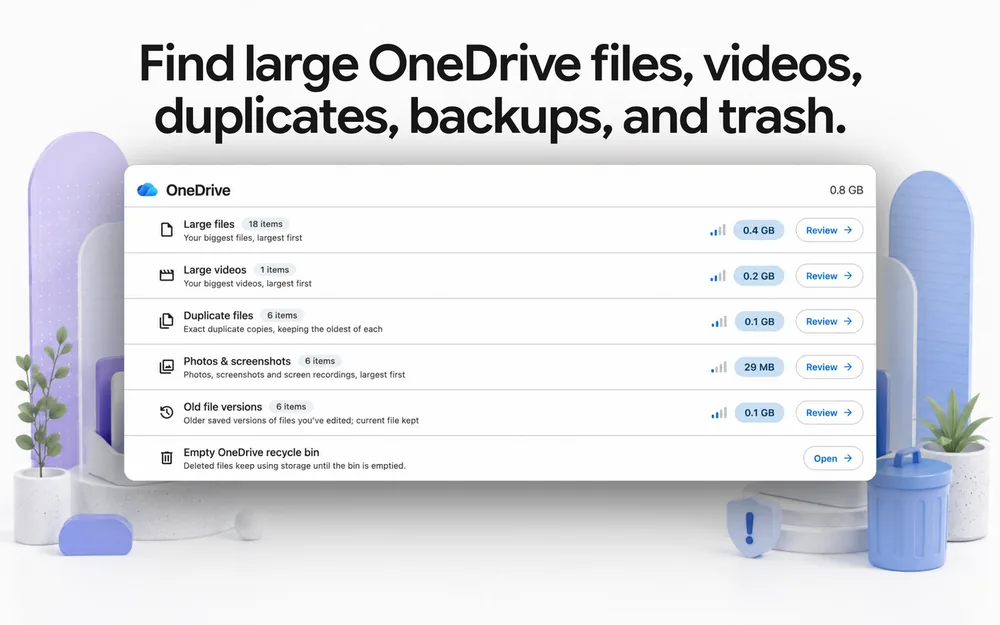
Everything runs in the browser and requests go directly between the browser and Microsoft. Emails and files are not uploaded to Storage Cleaner's servers.
The honest trade-offs
You are maintaining more than one account
Each extra account needs a strong password, recovery information, and occasional attention. Microsoft generally requires a sign-in at least once every two years to keep an account active, with exceptions listed in its account activity policy.
Ownership moves with the file
The extra account owns the destination folder. Only the owner can restore an item deleted from that shared folder's recycle bin. A main-account shortcut is access, not ownership.
Shared access can change
If sharing is removed, the account closes, or recovery fails, the main account may lose access. Keep recovery details current and consider an independent backup of irreplaceable files.
Email becomes an archive file
Moved mail is not a live inbox message. It is useful for keeping the content and attachments, not for preserving every Outlook.com behavior.
File history may not carry over
Manual copying creates new destination files. Version history and some metadata may not survive. Keep any version you might need before deleting the original.
The quotas stay separate
A 7 GB file cannot fit into one free 5 GB destination account just because the four accounts total 20 GB. Split your archive by account or reduce the file size.
Keep the additional accounts safe
For every account that owns stored files:
- Add a recovery email or phone number.
- Use a unique password and multifactor authentication.
- Record which folders that account owns.
- Sign in periodically and check Microsoft's activity status.
- Keep an independent backup of irreplaceable files.
- Do not use a work or school account as the overflow destination.
When this is not worth it
Keep everything in one account, and clean it up instead, if:
- You want one quota and one recovery path
- You regularly work with files larger than a free account can hold
- Multiple family members need predictable ownership and support
- You need every archived email to remain a normal inbox item
- Looking after extra accounts is more work than it is worth to you
- The data is important enough that relying on shared-folder access creates unacceptable risk
Free capacity is only useful when you can still find, open, and recover what you moved.
Frequently asked questions
Does Microsoft really give each free account 5 GB?
Yes. Microsoft's current storage documentation says a free personal account gets 5 GB of cloud storage for OneDrive files and photos, Outlook.com attachments, and eligible Microsoft 365 app data. The separate Outlook.com mailbox quota is 15 GB.
Is this one 20 GB Microsoft account?
No. It is up to four separate 5 GB cloud quotas across accounts you own. The destination accounts own the moved files; shared folders make them accessible from the main account.
Do shared folders use storage in my main OneDrive?
Microsoft says shared folders added to your OneDrive do not use your storage. They count against the folder owner's storage. A shortcut makes the folder easier to reach but does not change ownership.
Can I move Outlook.com email to another account and keep it in my inbox?
Not with this method. Storage Cleaner saves selected email and attachments as files in the destination OneDrive and shares them back. They remain readable archives, not live inbox messages.
Can I use work or school accounts?
No. Use personal Microsoft accounts only. Work and school storage, ownership, and administrator policies are different, and Storage Cleaner does not support those accounts.
Is creating extra Microsoft accounts allowed?
Microsoft lets people create personal accounts for free. Each account remains subject to Microsoft's Services Agreement, account-activity policy, and abuse controls. Use only accounts you own and maintain.
Do I have to connect three extra accounts?
No. Add only the capacity you need. One extra free account gives up to 10 GB distributed, two give up to 15 GB, and three give up to 20 GB.